 Trojan Recovery
Updated: 2025-09-02Trojan Recovery
Updated: 2025-09-02🤖 Telegram Bot
Automated trading with built-in wallet management
🎯 Understanding Trojan Token Accounts
Trojan creates Associated Token Accounts (ATAs) when you trade through Telegram commands:
⚡ Quick Buy/Sell
Fast trades via Telegram commands create token accounts with 0.0018 SOL rent each
🎯 Sniper Trades
Automated sniping of new tokens often leaves empty accounts after selling
📊 Copy Trading
Following successful traders creates multiple token accounts automatically
🔄 Failed Transactions
Even failed trades can create empty token accounts with locked SOL. Token accounts with remaining tokens can also be burned to recover the ATA.
💰 Expected Recovery
Based on 0.0018 SOL rent per empty token account
📱 Step 1: Access Wallet Settings in Trojan
Access Settings Menu
- Open Telegram and launch Trojan
- In the main interface, locate and tap the Settings button
- This will open the bot settings menu with various options
- Look for the Wallets option in the settings interface
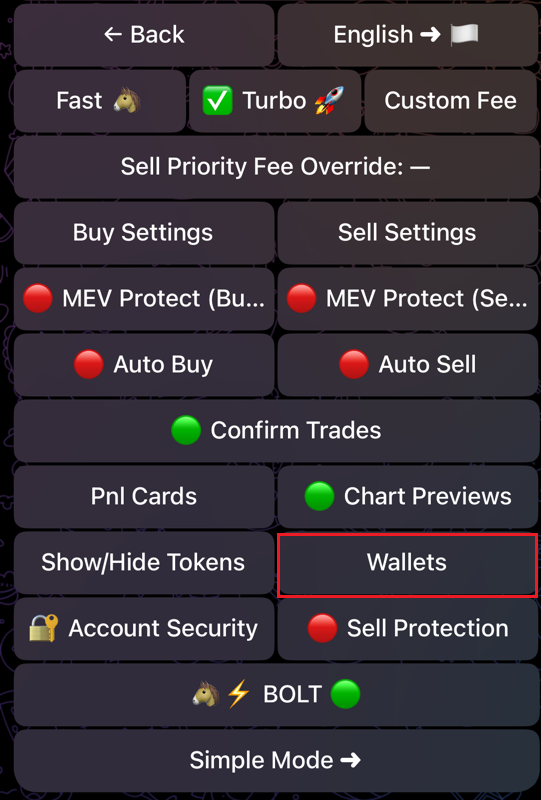 Settings menu in Trojan interface
Navigate to Wallets
- Tap on Wallets to access your wallet management section
- You will see a list of your available wallets (W1, W2, W3, etc.)
- Select the wallet you want to export (usually W1 is the main wallet)
- The selected wallet will be highlighted with a green checkmark
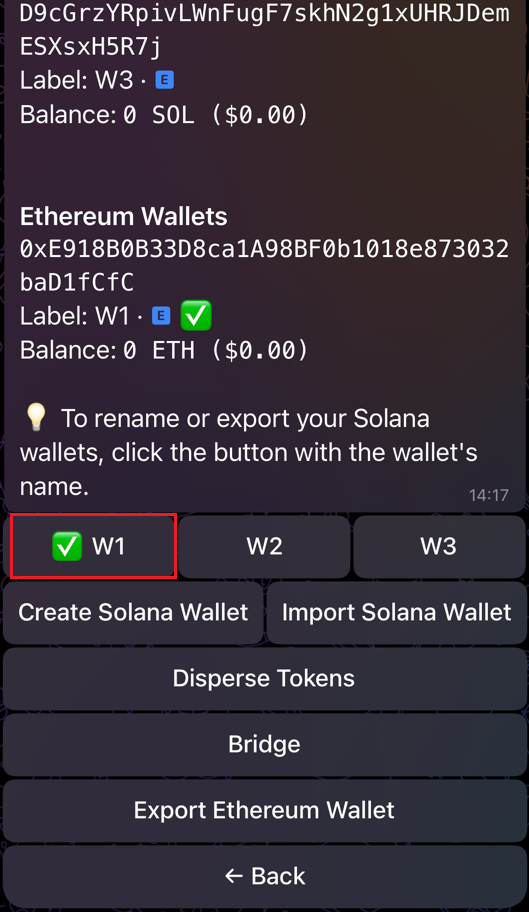 Wallets selection screen
🔑 Step 2: Export Your Private Key
Access Wallet Management
- In the wallet selection screen, tap on the wallet you want to manage
- You will see wallet details including the wallet address and balance
- Look for the Export Private Keys button
- Tap on Export Private Keys to begin the export process
- The system will show a confirmation dialog
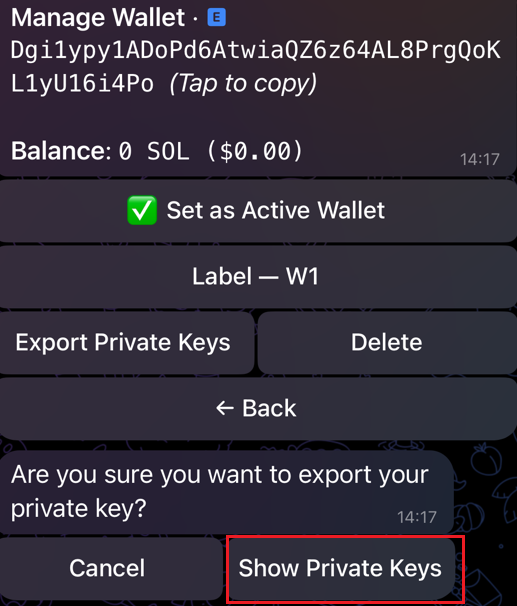 Wallet management screen
Confirm and Copy Private Key
- A security confirmation will appear asking Are you sure you want to export your private key
- Tap Show Private Keys to confirm and proceed
- Your private key will be displayed as a long string of characters
- Tap Tap to copy to copy the private key to your clipboard
- Store the private key securely in a password manager or secure note app
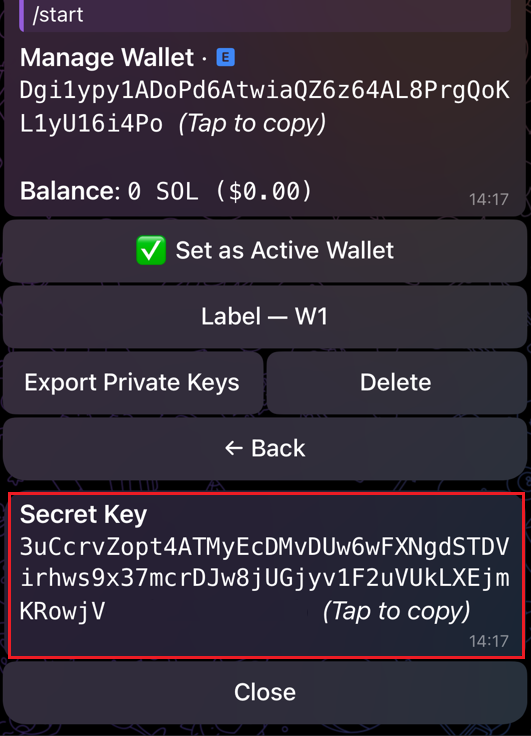 Private key display screen
💻 Step 3: Import Wallet to Phantom
Access Phantom Settings
- Open your Phantom wallet
- Click on your profile picture at the top
- Click the settings icon that appears
- Navigate to "Manage Accounts" from the settings menu
- You'll see your current wallet accounts listed
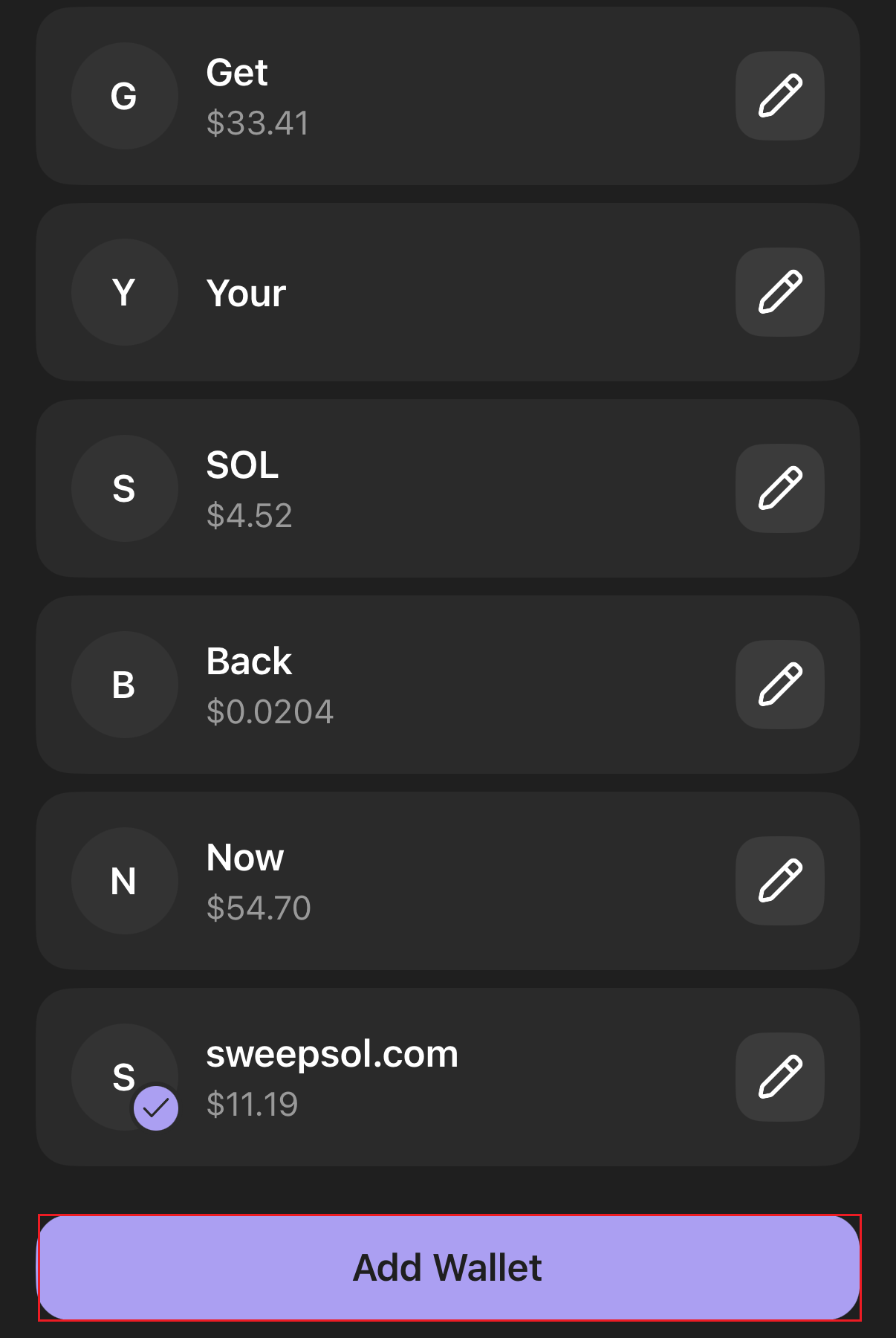 Phantom wallet settings menu
Add Trojan Wallet
- Tap "Add Wallet" at the bottom of the accounts list
- Select "Import Private Key" from the options
- Paste your Trojan private key (the long string)
- Name it "Trojan Trading" for easy identification
- Confirm the import and verify the wallet address matches
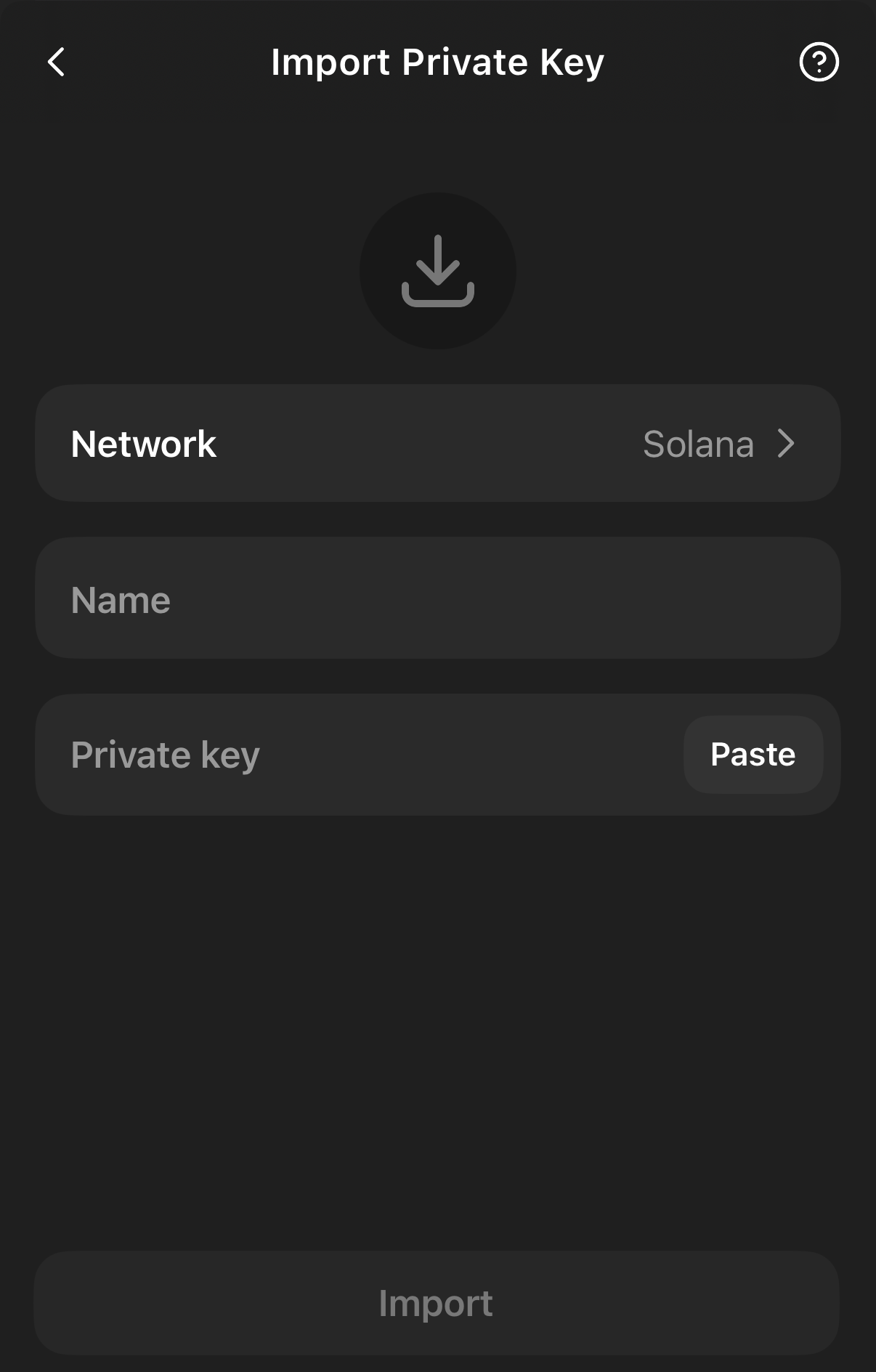 Private key import screen
🧹 Step 4: Clean Up Your Trojan Accounts
🚀 Use SweepSOL for Maximum Recovery
Now that your Trojan wallet is imported into Phantom, you can recover SOL from all empty token accounts:
Recovery Process:
- Visit SweepSOL.com while Phantom is open
- Connect your Phantom wallet
- Switch to your Trojan imported account in Phantom
- SweepSOL will scan for empty token accounts automatically
- Review the detected accounts - these are from your bot trading
- Select accounts to close and recover SOL
- Confirm the batch transaction in Phantom
- Receive recovered SOL instantly in your wallet
📊 What SweepSOL Finds
- Empty token accounts from completed trades
- Dust token balances (microscopic amounts)
- Failed transaction residuals
- Abandoned sniper accounts
- Copy-trading leftover accounts
Close up to 20 accounts in a single transaction for maximum efficiency
🛡️ Security Best Practices for Trojan Users
🚨 Never Do This
- Share your Trojan seed phrase in Telegram groups
- Use the same wallet for large amounts after exporting
- Leave exported credentials in clipboard/notes long-term
- Import the wallet to unknown or untrusted applications
⚠️ Telegram Bot Safety
- Enable 2FA on Trojan if available
- Use separate wallets for different trading strategies
- Regular cleanup prevents large SOL accumulation
- Monitor bot permissions and connected apps
✅ Recommended Practices
- Clean up bot accounts weekly if actively trading
- Use hardware wallets for long-term storage
- Keep detailed records of imported wallets
- Transfer recovered SOL to secure main wallet
💡 Advanced Trojan Recovery Tips
🎯 Maximize Your Recovery:
- Check multiple bot instances: If you used Trojan across different Telegram accounts
- Include failed snipes: Even unsuccessful trades create accounts
- Look for copy-trade remnants: Automatic trades often leave dust behind
- Historical trading data: Accounts from weeks/months of bot usage
⚙️ Post-Recovery Maintenance:
- Transfer valuable tokens: Move any remaining tokens to your main wallet
- Secure credential cleanup: Safely delete exported private keys
- Wallet organization: Rename imported accounts clearly in Phantom
- Regular monitoring: Check for new empty accounts periodically
🎯 Ready to Recover Your Trojan SOL?
🚀 Start Recovery Process
Export from Trojan, import to Phantom, then use SweepSOL to recover your locked SOL from trading accounts
Launch SweepSOLWorks with all imported Trojan wallets
 ATA Accounts
 Token Burning